Swept Path Analysis in SketchUp, Revit and Civil 3D: Add-ins and the Browser Round Trip

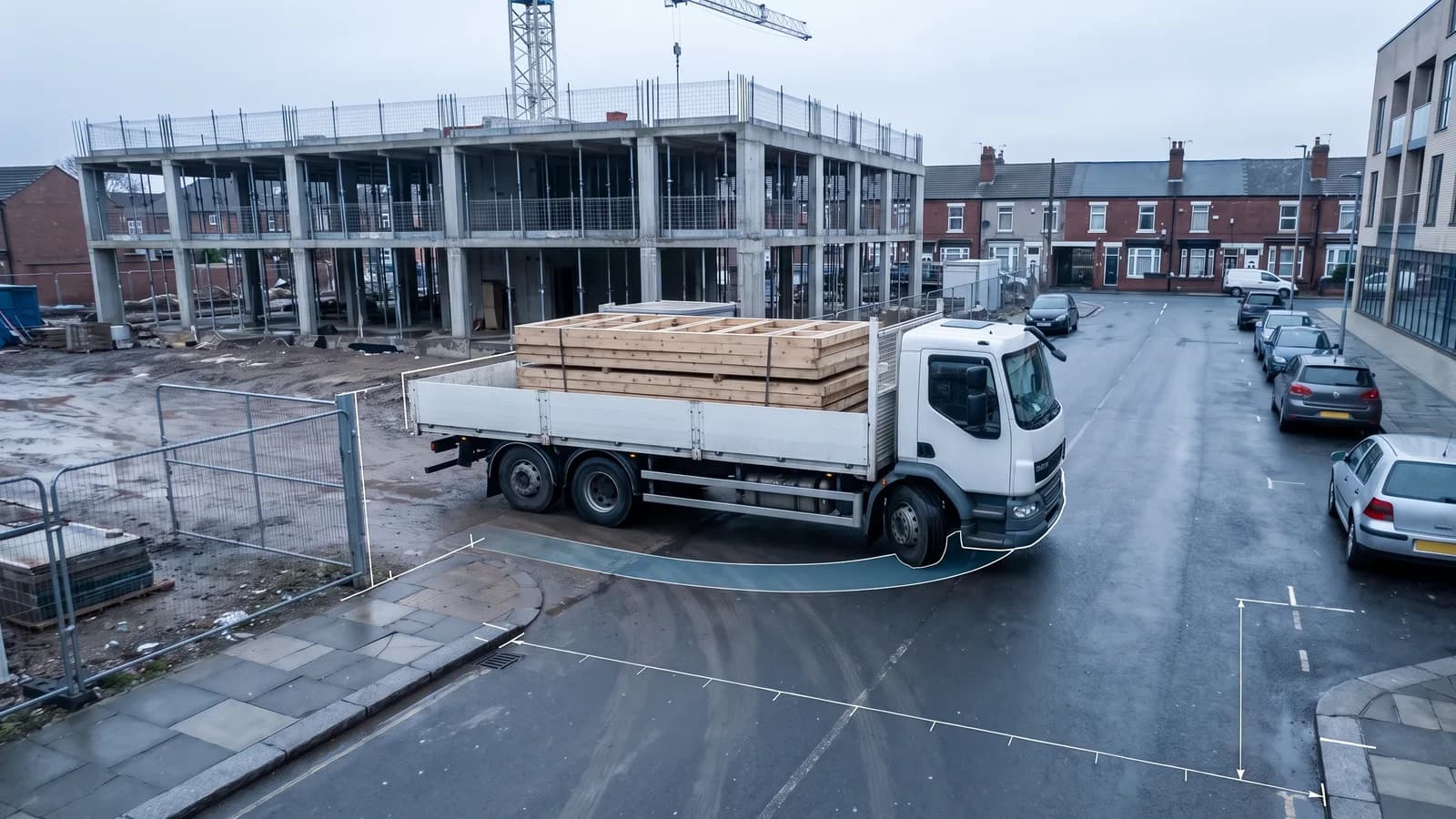
You have the site in SketchUp, the building in Revit or the road in Civil 3D, and someone wants a swept path analysis on it. The question is where the swept path tool lives: inside your program, as an add-in, or outside it, with the plan travelling out and the result travelling back. This post answers that per program, from the vendors' own pages, and then walks the round trip step by step. If you need the geometry first, the swept path analysis guide covers what the envelope is and what the drawing must show.
The short version: Civil 3D has add-ins, Revit and SketchUp have none we can cite from their makers' or the add-in vendors' pages, and all three export a DWG or DXF (SketchUp and Revit also an image or PDF) that goes into a browser tool and comes back as a layered CAD file. The round trip is the same in each case; only the export and import commands differ.
Where the swept path tool lives in each program
| Program | Add-in on the vendor's own page | What the program exports | What comes back |
|---|---|---|---|
| Civil 3D | Autodesk Vehicle Tracking (hosted by Civil 3D 2027); Transoft AutoTURN (Civil 3D 2025 and 2026 listed) | DWG (Export to AutoCAD) or DXF | DXF or DWG inserted at the reference point |
| Revit | None on either vendor page: Revit is not on Autodesk's host list for Vehicle Tracking 2027; Transoft's AutoTURN page does not mention Revit | DWG or DXF of a view or sheet (File tab, Export, CAD Formats) | DXF or DWG via Link CAD or Import CAD |
| SketchUp | No swept path tool on SketchUp's CAD and image export help pages; third-party extensions live in the Extension Warehouse | 2D Graphic as .dwg/.dxf (subscribers) or JPEG, PNG, TIFF, BMP, PDF, EPS | DXF or DWG imported by a subscriber, or an image placed under the model |
The browser tool in the middle is PathSweeper: it runs in Chrome, Edge or Firefox with nothing to install, takes a PDF or image site plan free of charge and a DWG, DXF or 12d XML drawing with the Project Pass, and writes the swept path back out as PNG or JPEG (free) or as a layered DXF or DWG (Pass). For the wider field of tools, including the desktop suites, see the swept path analysis software comparison.
Civil 3D: two add-ins, and when the round trip is still shorter
Civil 3D is the one program of the three with swept path add-ins on the vendors' pages. Autodesk's system requirements for Vehicle Tracking 2027 name three host applications, AutoCAD 2027, Civil 3D 2027 and AutoCAD Architecture 2027, on 64-bit Windows 11 or Windows 10 version 1809 or later; the add-in "requires and runs within a host application". Autodesk's help describes the work as selecting a vehicle, positioning it on the drawing and driving it through the drawing on screen, with the option to create a vehicle that is not listed and add it to your own library. Transoft's AutoTURN page lists AutoCAD, Civil 3D and MicroStation by name, says AutoTURN and AutoTURN Pro are compatible with Autodesk, Bentley and Bricsys platforms, and notes added support for Civil 3D 2025 and 2026.
If Vehicle Tracking is already installed on your machine, the swept path is driven on screen in the DWG you are working in (Autodesk's words: "drive it through your drawing on-screen") and there is no exchange step; AutoTURN runs as an add-in to the same hosts. How Vehicle Tracking is licensed, what its vehicle editors and reverse manoeuvres do, and when it is the better choice are on the PathSweeper vs Autodesk Vehicle Tracking page, so this post does not repeat them.
The round trip is for the other case: the Civil 3D seat is there, the add-in is not, and the check is needed this week. Autodesk's help lists two exports under Data Sharing that fit. "To Export an Autodesk Civil 3D Drawing to an AutoCAD DWG File" produces a plain DWG; "About Exporting a Drawing to a DXF File" says the process "creates a new DXF format drawing with all civil objects exploded to AutoCAD primitives" and that "the original drawing is not affected". Either file is what PathSweeper's CAD upload wants. Both exports reduce the civil objects to AutoCAD primitives, which is exactly right for a swept path check: the browser needs the kerbs, bays and building edges as geometry, not the alignment or the corridor model behind them.
After the check, the DXF or DWG from the browser is inserted into the Civil 3D drawing like any other AutoCAD file, with the reference marker snapped to the corner it was placed on.
Revit: no add-in we can cite, so the drawing travels
For an architecture office working in Revit the honest answer is short. Autodesk's host list for Vehicle Tracking 2027 is AutoCAD, Civil 3D and AutoCAD Architecture; Revit is not on it. Transoft's AutoTURN page names Autodesk, Bentley and Bricsys platforms and does not mention Revit. The swept path therefore runs outside the model, and the model receives the result as a CAD link.
So the plan leaves Revit as a 2D CAD file. Autodesk's help, "Export to DWG or DXF", is the procedure: "Click File tab Export CAD Formats (DWG) or (DXF)", pick an export setup, select "current view/sheet only" for a single view, then in the Export CAD Formats dialog "select an AutoCAD version for the exported DWG/DXF file". Two details from the companion page "About Exporting to CAD Formats" matter for a swept path check. First, "when you export to 2D DWG or DXF, you export a scaled 2D view of the model", so export the site plan view, not a 3D view, which would export "the actual 3D model, not a 2D representation". Second, Autodesk says the view scale "determines whether the resulting view is exported for precision or for performance"; kerb lines and bay edges are what the vehicle has to clear, so export at the scale you would plot the plan at, or finer.
The result comes back the way Revit takes any CAD file. Autodesk's "About Importing or Linking CAD Files" names the two tools, Import CAD and Link CAD, and says that "in most cases linking is preferred over importing CAD files", because a link is managed from the Manage Links dialog and "will also update when reloaded". For a swept path that will be revised after the first review, that is the right choice: re-export from the browser under the same file name, reload the link, and the envelope in the Revit view follows.
SketchUp: the Extension Warehouse and the 2D export
SketchUp's help pages on CAD and image export name no swept path tool. The Extension Warehouse, in Trimble's words, "offers a way to find and download third-party extensions made for SketchUp's desktop application", each of which "performs a specific task or offers expanded functionality within SketchUp"; it opens from Extensions, Extension Warehouse inside the program, and it is where a third-party swept path extension would be listed. This post names none.
What SketchUp does have is the export the round trip needs. File, Export, 2D Graphic writes the current view either as a CAD file or as an image. For the CAD file, Trimble's help says "SketchUp subscribers can import CAD files into their models, and export their models as CAD files for use with other software", with ".dwg or .dxf" as the file type and "Full Scale" selected by default under Drawing Scale & Size. For the image, the raster options are "JPEG, PNG, TIFF, or BMP", with PDF and EPS as the vector formats, and the Use View Size option exports "on a 1:1 scale" of the view. Set the camera to a top-down parallel view of the site before either export; a perspective view is not a plan.
Which of the two you choose decides what the check costs. A PNG, JPEG or PDF of the plan goes into PathSweeper free of charge and is calibrated against one dimension you trust, say a bay width or a building length you can read in the model. A DWG or DXF carries its own scale and needs no calibration, and uploading it is part of the Project Pass. Either way the result can come back as a DXF or DWG that a SketchUp subscriber imports into the model, or as a PNG that you place under the site as an image. Trimble's page adds that textures, shadows, backgrounds and transparency "can't be exported to PDF and EPS vector files", so a textured site model exports cleaner as PNG.
Export, upload, insert: the commands per program
The steps are the same for all three programs. The in-app steps are PathSweeper's; the export and import commands are the ones quoted above.
- Export the plan. Civil 3D: Export to AutoCAD DWG or Export to DXF (Data Sharing). Revit: File tab, Export, CAD Formats, DWG or DXF, current view only, a site plan view at plot scale. SketchUp: File, Export, 2D Graphic, as .dwg/.dxf or as PNG/PDF from a top-down parallel view.
- Upload it. Open PathSweeper in the browser. The upload dialog has an "Image or PDF" tile (JPG, PNG, WebP, PDF, up to 20 MB with a free account) and a "CAD upload" tile (DXF, DWG or 12d XML, to scale). The CAD upload needs the Project Pass (€39 one-time per project, or the Annual Pass at €399 per year for every project); the image or PDF route is free. If your office exchanges DXF rather than DWG, the separate free DWG to DXF converter converts files up to 80 MB without an account.
- Set the scale, if the file has none. A CAD drawing brings its own scale. An image or PDF carries no coordinates, so the Calibrate tool asks for two clicks on a reference with a known distance and the real-world value in metres or feet; the other tools stay locked until that is confirmed. The CAD Layers panel (
L) switches the imported layers on and off so the vehicle is drawn over the kerbs and not over the hatching. - Draw the manoeuvre. Pick the vehicle from the Vehicle Library (
V): four standard vehicles free, the national design-vehicle libraries with the Pass. Draw Path, forward (F) or reverse (R), and the envelope updates as you click. Save the path with a name; the batch ZIP names each file after it, and the DXF labels the vehicle outline with the vehicle's name. - Export and insert. In the Export dialog, place the reference point on a spot you can find in your drawing, a building corner for example; it becomes the origin (0,0) of the CAD file, and without it the drawing has an arbitrary origin. Export DXF or DWG. The file contains the swept envelope (PATHSWEEPER_SWEPT_AREA), the front-axle centre line (PATHSWEEPER_PATH), the vehicle outlines at the start and end of each path (PATHSWEEPER_VEHICLE), the data block with each vehicle's dimensions (PATHSWEEPER_INFO) and the reference marker (PATHSWEEPER_REFERENCE), in millimetres. What each layer holds, and the AutoCAD versions the files are written in, is in the DXF and DWG export post. In Civil 3D, insert it and snap the marker to the same corner. In Revit, Link CAD and snap. In SketchUp, import the .dwg or .dxf and move it by the marker.
For the free route the last step is a PNG or JPEG instead: it goes under the SketchUp site as an image, as a check rather than as geometry. Exports that stay free: PNG, JPEG, the PDF that wraps the PNG, and the batch ZIP. DXF, DWG, the A3 plan set, the vehicle data sheet and the animation are part of the Project Pass or the Annual Pass.
What to expect, and what not to
The envelope you get back is geometry at the scale of your plan, not a statement about any standard; which design vehicle the reviewer expects is set by the authority, not by the program the plan was drawn in. And the flattened DWG that left Civil 3D or Revit is the right input for the check and the wrong file to send back to the model: keep the round trip to the swept path layers and let the model stay the model.